<data:blog.pageTitle/> <data:blog.pageName/> ~ <data:blog.title/>

Tuesday, March 25, 2008

How to see email headers on Yahoo and Hotmail

How to see email headers on Yahoo and Hotmail

Yahoo Mail
On Yahoo Mail you need just to click "Full headers" while you see message.

HotMail
In HotMail you need to enable show header in mail options.
In Mail Options click to Mail Display Settings
In the 'Mail Display Settings' set 'Message Headers' to "Full" or "Advanced"

how change ur folder in control panel so that no one can open it except u

how change ur folder in control panel so that no one can open it except u

first of all select the folder u wanna to change in control panel
for example u select the folder name movies
rilght click the mouse button and select new text document open the document and type this
ren movies movies.{21ec2020-3aea-1069-a2dd-08002b30309d}
then save the document as loc.bat and double click the bat file and its done ur folder change into control panel

to unlock this folder type

ren movies.{21ec2020-3aea-1069-a2dd-08002b30309d} movies
save the document as key.bat and double click the key bat file
if u like this then thanx me to encourage me

Tricks and Shortcuts

Tricks and Shortcuts

Accessibility Controls access.cpl
Add Hardware Wizard hdwwiz.cpl
Add/Remove Programs appwiz.cpl
Administrative Tools control admintools
Automatic Updates wuaucpl.cpl
Bluetooth Transfer Wizard fsquirt
Calculator calc
Certificate Manager certmgr.msc
Character Map charmap
Check Disk Utility chkdsk
Clipboard Viewer clipbrd
Command Prompt cmd
Component Services dcomcnfg
Computer Management compmgmt.msc
timedate.cpl ddeshare
Device Manager devmgmt.msc
Direct X Control Panel (If Installed)* directx.cpl
Direct X Troubleshooter dxdiag
Disk Cleanup Utility cleanmgr
Disk Defragment dfrg.msc
Disk Management diskmgmt.msc
Disk Partition Manager diskpart
Display Properties control desktop
Display Properties desk.cpl
Display Properties (w/Appearance Tab Preselected) control color
Dr. Watson System Troubleshooting Utility drwtsn32
Driver Verifier Utility verifier
Event Viewer eventvwr.msc
File Signature Verification Tool sigverif
Findfast findfast.cpl
Folders Properties control folders
Fonts control fonts
Fonts Folder fonts
Free Cell Card Game freecell
Game Controllers joy.cpl
Group Policy Editor (XP Prof) gpedit.msc
Hearts Card Game mshearts
Iexpress Wizard iexpress
Indexing Service ciadv.msc
Internet Properties inetcpl.cpl
IP Configuration (Display Connection Configuration) ipconfig /all
IP Configuration (Display DNS Cache Contents) ipconfig /displaydns
IP Configuration (Delete DNS Cache Contents) ipconfig /flushdns
IP Configuration (Release All Connections) ipconfig /release
IP Configuration (Renew All Connections) ipconfig /renew
IP Configuration (Refreshes DHCP & Re-Registers DNS) ipconfig /registerdns
IP Configuration (Display DHCP Class ID) ipconfig /showclassid
IP Configuration (Modifies DHCP Class ID) ipconfig /setclassid
Java Control Panel (If Installed) jpicpl32.cpl
Java Control Panel (If Installed) javaws
Keyboard Properties control keyboard
Local Security Settings secpol.msc
Local Users and Groups lusrmgr.msc
Logs You Out Of Windows logoff
Microsoft Chat winchat
Minesweeper Game winmine
Mouse Properties control mouse
Mouse Properties main.cpl
Network Connections control netconnections
Network Connections ncpa.cpl
Network Setup Wizard netsetup.cpl
Notepad notepad
Nview Desktop Manager (If Installed) nvtuicpl.cpl
Object Packager packager
ODBC Data Source Administrator odbccp32.cpl
On Screen Keyboard osk
Opens AC3 Filter (If Installed) ac3filter.cpl
Password Properties password.cpl
Performance Monitor perfmon.msc
Performance Monitor perfmon
Phone and Modem Options telephon.cpl
Power Configuration powercfg.cpl
Printers and Faxes control printers
Printers Folder printers
Private Character Editor eudcedit
Quicktime (If Installed) QuickTime.cpl
Regional Settings intl.cpl
Registry Editor regedit
Registry Editor regedit32
Remote Desktop mstsc
Removable Storage ntmsmgr.msc
Removable Storage Operator Requests ntmsoprq.msc
Resultant Set of Policy (XP Prof) rsop.msc
Scanners and Cameras sticpl.cpl
Scheduled Tasks control schedtasks
Security Center wscui.cpl
Services services.msc
Shared Folders fsmgmt.msc
Shuts Down Windows shutdown
Sounds and Audio mmsys.cpl
Spider Solitare Card Game spider
SQL Client Configuration cliconfg
System Configuration Editor sysedit
System Configuration Utility msconfig
System File Checker Utility (Scan Immediately) sfc /scannow
System File Checker Utility (Scan Once At Next Boot) sfc /scanonce
System File Checker Utility (Scan On Every Boot) sfc /scanboot
System File Checker Utility (Return to Default Setting) sfc /revert
System File Checker Utility (Purge File Cache) sfc /purgecache
System File Checker Utility (Set Cache Size to size x) sfc /cachesize=x
System Properties sysdm.cpl
Task Manager taskmgr
Telnet Client telnet
User Account Management nusrmgr.cpl
Utility Manager utilman
Windows Firewall firewall.cpl
Windows Magnifier magnify
Windows Management Infrastructure wmimgmt.msc
Windows System Security Tool syskey
Windows Update Launches wupdmgr
Windows XP Tour Wizard tourstart
Wordpad write
Run line commands can be very useful some times, its better to know them here are all the commands that i know u might find them usefull too Commands are same for Windows xp pro and home
Run Line Commands

These are GUI applications that can be opened from the run line.
These applications are not located in the C:\windows\system32\ directory, the
keys for these applications are located in the registry under:
HKLM\software\microsoft\windows\currentversion\app paths
BCKGZM.EXE - Backgammon
CHKRZM.EXE - Checkers
CONF.EXE - NetMeeting
DIALER.EXE - Phone Dialer
HELPCTR.EXE - Help and Support
HRTZZM.EXE - Internet Hearts
HYPERTRM.EXE - HyperTerminal
ICWCONN1.EXE - Internet Connection Wizard
IEXPLORE.EXE - Internet Explorer
INETWIZ.EXE - Setup Your Internet Connection
INSTALL.EXE - User's Folder
MIGWIZ.EXE - File and Settings Transfer Wizard
MOVIEMK.EXE - Windows Movie Maker
MPLAYER2.EXE - Windows Media Player Version 6.4.09.1120
MSCONFIG.EXE - System Configuration Utility
MSIMN.EXE - Outlook Express
MSINFO32.EXE - System Information
MSMSGS.EXE - Windows Messenger
MSN6.EXE - MSN Explorer
PBRUSH.EXE - Paint
PINBALL.EXE - Pinball
RVSEZM.EXE - Reversi
SHVLZM.EXE - Spades
TABLE30.EXE - User's Folder
WAB.EXE - Windows Address Book
WABMIG.EXE - Address Book Import Tool
WINNT32.EXE - User's Folder
WMPLAYER.EXE - Windows Media Player
WRITE.EXE - Wordpad

These .EXE files reside in (c:\windows\system32\) or (c:\windows\) directory.
ACCWIZ.EXE - Accessibility Wizard
CALC.EXE - Calculator
CHARMAP.EXE - Character Map
CLEANMGR.EXE - Disk Space Cleanup Manager
CLICONFG.EXE - SQL Client Configuration Utility
CLIPBRD.EXE - Clipbook Viewer
CLSPACK.EXE - Class Package Export Tool
CMD.EXE - Command Line
CMSTP.EXE - Connection Manager Profile Installer
CONTROL.EXE - Control Panel
DCOMCNFG.EXE - Component Services
DDESHARE.EXE - DDE Share
DRWATSON.EXE - Doctor Watson v1.00b
DRWTSN32.EXE - Doctor Watson Settings
DVDPLAY.EXE - DVD Player
DXDIAG.EXE - DirectX Diagnostics
EUDCEDIT.EXE - Private Character Editor
EVENTVWR.EXE - Event Viewer
EXPLORER.EXE - Windows Explorer
FREECELL.EXE - Free Cell
FXSCLNT.EXE - Fax Console
FXSCOVER.EXE - Fax Cover Page Editor
FXSEND.EXE - MS Fax Send Note Utility
IEXPRESS.EXE - IExpress 2.0
LOGOFF.EXE - System Logoff
MAGNIFY.EXE - Microsoft Magnifier
MMC.EXE - Microsoft Management Console
MOBSYNC.EXE - Microsoft Synchronization Manager
MPLAY32.EXE - Windows Media Player version 5.1
MSHEARTS.EXE - Hearts
MSPAINT.EXE - Paint
MSTSC.EXE - Remote Desktop Connection
NARRATOR.EXE - Microsoft Narrator
NETSETUP.EXE - Network Setup Wizard
NOTEPAD.EXE - Notepad
NSLOOKUP.EXE - NSLookup Application
NTSD.EXE - Symbolic Debugger for Windows 2000
ODBCAD32.EXE - ODBC Data Source Administrator
OSK.EXE - On Screen Keyboard
OSUNINST.EXE - Windows Uninstall Utility
PACKAGER.EXE - Object Packager
PERFMON.EXE - Performance Monitor
PROGMAN.EXE - Program Manager
RASPHONE.EXE - Remote Access Phonebook
REGEDIT.EXE - Registry Editor
REGEDT32.EXE - Registry Editor
RESET.EXE - Resets Session
RSTRUI.EXE - System Restore
RTCSHARE.EXE - RTC Application Sharing
SFC.EXE - System File Checker
SHRPUBW.EXE - Create Shared Folder
SHUTDOWN.EXE - System Shutdown
SIGVERIF.EXE - File Signature Verification
SNDREC32.EXE - Sound Recorder
SNDVOL32.EXE - Sound Volume
SOL.EXE - Solitaire

SPIDER.EXE - Spider Solitaire
SYNCAPP.EXE - Create A Briefcase
SYSEDIT.EXE - System Configuration Editor
SYSKEY.EXE - SAM Lock Tool
TASKMGR.EXE - Task Manager
TELNET.EXE - MS Telnet Client
TSSHUTDN.EXE - System Shutdown
TOURSTART.EXE - Windows Tour Launcher
UTILMAN.EXE - System Utility Manager
USERINIT.EXE - My Documents
VERIFIER.EXE - Driver Verifier Manager
WIAACMGR.EXE - Scanner and Camera Wizard
WINCHAT.EXE - Windows for Workgroups Chat
WINHELP.EXE - Windows Help Engine
WINHLP32.EXE - Help
WINMINE.EXE - Minesweeper
WINVER.EXE - Windows Version Information
WRITE.EXE - WordPad
WSCRIPT.EXE - Windows Script Host Settings
WUPDMGR.EXE - Windows Update

The following are Control Panel applets that can be run from the run line.
They are located in the c:\windows\system32 directory, and have the file type
extension ".CPL".
ACCESS.CPL - Accessibility Options
APPWIZ.CPL - Add or Remove Programs
DESK.CPL - Display Properties
HDWWIZ.CPL - Add Hardware Wizard
INETCPL.CPL - Internet Explorer Properties
INTL.CPL - Regional and Language Options
JOY.CPL - Game Controllers
MAIN.CPL - Mouse Properties
MMSYS.CPL - Sounds and Audio Device Properties
NCPA.CPL - Network Connections
NUSRMGR.CPL - User Accounts
ODBCCP32.CPL - ODBC Data Source Administrator
POWERCFG.CPL - Power Options Properties
SYSDM.CPL - System Properties
TELEPHON.CPL - Phone and Modem Options
TIMEDATE.CPL - Date and Time Properties
The following are Microsoft Management Console Snap-ins that can be opened from
the run line. These applications have the file type extension ".MSC".
CERTMGR.MSC - Certificates
CIADV.MSC - Indexing Service
COMPMGMT.MSC - Computer Management
DEVMGMT.MSC - Device Manager
DFRG.MSC - Disk Defragmenter
DISKMGMT.MSC - Disk Management
EVENTVWR.MSC - Event Viewer
FSMGMT.MSC - Shared Folders
LUSRMGR.MSC - Local Users and Groups
NTMSMGR.MSC - Removable Storage
NTMSOPRQ.MSC - Removable Storage Operator Requests
PERFMON.MSC - Performance Monitor
SERVICES.MSC - Services
WMIMGMT.MSC - Windows Management Infrastructure


Calculation on command Prompt ! u knew dis???

The command processor CMD.EXE comes with a mini-calculator that can perform simple arithmetic on 32-bit signed integers:

C:\>set /a 2+2
4
C:\>set /a 2*(9/2)
8
C:\>set /a (2*9)/2
9
C:\>set /a "31>>2"
7

Note that we had to quote the shift operator since it would otherwise be misinterpreted as a "redirect stdout and append" operator.

For more information, type set /? at the command prompt.

I forgot my Windows XP login password

I forgot my Windows XP login password

Lost User Passwords. (Windows XP)

If you have lost or forgotten a user account password in Win XP, simply log in as the computer administrator, and go to control panel, user accounts. Here you will be able to reset the password for any of the systems user accounts.

Lost Administrator Password. (Windows XP)

Slightly more work needed if you lose or forget the Windows XP administrator password.

First reboot Windows XP in safe mode by re-starting the computer and pressing F8 repeated as the computer starts up. Then (in safe mode) click Start and then click Run. In the open box type "control userpasswords2" without the quotes - I have just used quotes to differentiate what you have to type.

You will now have access to all the user accounts, including the administrators account and will be able to reset the lost password.

Just click the administrators user account, and then click Reset Password.

You will need to add a new password in the New password and the Confirm new password boxes, and confirm by clicking OK.

All done, you have recovered the lost adminitrators password!

How to Set Security in Windows XP Professional in a Workgroup

How to Set Security in Windows XP Professional in a Workgroup

In Windows XP Home Edition and Windows XP Professional, if working in a workgroup, the Security tab is hidden by default. This behavior occurs because in Windows XP Home Edition and Windows XP Professional, guests are forced to
log on to a workgroup. To view the Security tab, press CTRL, right-click the file, and then click Properties.

NOTE: Security can only be set in an NTFS partition. If you remove the Everyone group from the NTFS permissions, the file or folder is inaccessible over the network.

When Simple file sharing is enabled, the user is presented with the Simple File Sharing UI rather than the classic "Security" and "Sharing" tabs. This new UI is implemented by default in Windows XP, Windows XP Home Edition, and Windows XP
Professional when working in a workgroup. However, the computer is started in Safe mode, the ACL editor is displayed.

The simplified Sharing UI is different for My Documents and the folders that are located in My Documents. When the My Documents folder is opened, the following options are displayed:

- "Only I have access to this folder"
- "This folder is shared on the network"
-Share name:

- "Allow other users to change my files"
However, when the other folders is opened, the following options are displayed:

- Share name:

- "Allow other users to change my files"

In addition: More Information.
When a user password is created in Control Panel, the "Protect The My Documents Folder" option is displayed. On a Windows XP Professional-based computer, only you can make a registry change to show the classic security UI.
Remove Shared Documents
Start/Run/Regedit. Navigate to...
HKEY_LOCAL_MACHINE\SOFTWARE\Microsoft\Windows\Curr entVersion\Explorer\MyComputerNameSpace\DelegateFo lders\{59031a47-3f72-44a7-89c5-5595fe6b30ee} Right Click, Delete.
__________________

How to Configure Windows XP to Automatically Log On a User Account

How to Configure Windows XP to Automatically Log On a User Account

For Windows to automatically log on a user account during the startup process, the following must be met:

- The Welcome screen must be available
- Guest account access must be turned off
- There must be only one user account on the computer
- The user account must not have a password

To make the Welcome screen available:

1. Click Start, click Control Panel, and then double-click User Accounts.
2. Click "Change the way users log on or off".
3. Click to select the "Use the Welcome screen for fast and easy logon" check box.
4. Click OK.

To turn off Guest account access:

1. Click Start, click Control Panel, and then double-click User Accounts.
2. Click the Guest account.
3. Click "Turn off Guest access".

To remove the password from the user account:

1. Click Start, click Control Panel, and then double-click User Accounts.
2. Click the user account.
3. Click "Remove my password".
4. Type the password in the "Type your current password" box, and then click Remove Password.

Speed Up IE browsing in Vista

Speed Up IE browsing in Vista

Increase Internet Explorer Speed in Vista.
1. Go to Start –> Run and type regedit
2. Select: HKEY_CURRENT_USER / Software / Microsoft / Windows / Current Version / Internet Settings.
3. Create a "New DWORD (32bit value)" entry if it is not already there and call it MaxConnectionsPerServer
4. Now double click on it and in the Value Date box click on the DECIMAL and add the value of 10.
5. Next if it is not already there create a new DWORD (32bit value) entry and call it:
MaxConnectionsPer1_0Server
6. Now double click on it and in the Value Date box click on the DECIMAL and add the value of 10.
7. Close regedit and start Internet explorer
You will now have better browsing speed in IE.
Tested: It works

How To Rename a File In Windows !!

How To Rename a File In Windows !!

By default, windows does this stupid thing where it hides a files extension (last three letters) for files where it recognises the extension. This can make it hard for you to change an extension, which you will need to do to use some files. Heres how to change this behaviour so you can change any 'extension' you like

Open an explorer window, and go to 'tools/ folder options' to open a new settings dialouge box.
In the 'view' tab, in the advanced settings window, there is an option 'hide extensions for known file types'. Make sure that is off, then hit the button saying 'apply to all folders'.

All files you look at now, will show their extensions. Simply 'right click' and choose 'rename', to change the extension of a file.

Make computer go faster temperorily for Faster Games

Make computer go faster temperorily for Faster Games

Windows XP Home and Professional Service Pack 2 Service Configurations

How to speed up your computer For EXTREME GAMERS.

Make computer go faster temporarily for faster games

This Batch file is designed to shutdown several of windows XP services, and then trying to reduce lag.

Simply paste the code into a notepad and rename it game_runner.bat and save it. Run the program, could take anything from 20 secs to a few minutes to run, depending on system spec.


BATCH FILE: A file that contains a sequence, or batch, of commands. Batch files are useful for storing sets of commands that are always executed together because you can simply enter the name of the batch file instead of entering each command individually.


HOW:

Open NOTEPAD and paste the code and save as (YOUR_FILENAME.bat) and click the drop down box Save as type choose All Files and click save...and presto your done!...Amigo

if you want to add some services that you want to disable just add


example: net stop "Automatic Updates"

Copy and Paste and save it as GAME.BAT


net stop "Computer Browser"
net stop Server
net stop Workstation
net stop "Help and Support"
net stop Messenger
net stop "Print Spooler"
net stop "Shell Hardware Detection"
net stop "SSDP Discovery Service"
net stop "Task Scheduler"
net stop Themes
net stop "Upload Manager"
net stop "Windows Image Acquisition (WIA)"
net stop "Automatic Updates"

REM IPsec might be nessesary for ADSL Users
net stop "IPSEC Services"

REM The Following might not be installed on your system
REM if they are I would recommend switching them off.
net stop "Ipod service"
net stop "SecuROM User Access Service (V7)"

REM I use Norton antivirus and I switch it off completely.
net stop "Symantec AntiVirus Client"

REM All done Press any key to close this window
pause


Copy and Paste and save it as UN_GAME.BAT


net start "Computer Browser"
net start Server
net start Workstation
net start "Help and Support"
net start Messenger
net start "Print Spooler"
net start "Shell Hardware Detection"
net start "SSDP Discovery Service"
net start "Task Scheduler"
net start Themes
net start "Upload Manager"
net start "Windows Image Acquisition (WIA)"
net start "Automatic Updates"

REM IPsec might be nessesary for ADSL Users
net start "IPSEC Services"

REM The Following might not be installed on your system
REM if they are I would recommend switching them off.
net start "Ipod service"
net start "SecuROM User Access Service (V7)"

REM I use Norton antivirus and I switch it off completely.
net start "Symantec AntiVirus Client"

REM All done Press any key to close this window
pause


WARNING:

IF YOU ADD THE SERVICES IN GAME.BAT IT SHOULD HAVE ALSO IN UN_GAME.BAT just like ON and OFF...CHIAO!...If you don't know what to do just used the default services i put in the code...

REFERENCE BEFORE YOU ADD THE SERVICES to the batch file if you want to DISABLE you might read this first.

http://www.codecavalier.com/blackvip...servicecfg.htm

Fast way to Delete Microsoft Word Page

Fast way to Delete Microsoft Word Page

Open Visual Basic Editor (VBE)from your Microsoft Word "Tools | Macro". Make a new module from "Insert | Module"

Insert this code

Code:
Sub Delete_Page()
ctiveDocument.Bookmarks("\Page").Range.Delete
End Sub
Run "Debug | Compile Project". Close your VBE & back to your document. For the next step, open "Tools | Macro | macros". Choose "Delete Page" option & click also "Organizer". Go to "Macro Project item" tab & copy "Module1" to "Normal1.Dot" Click OK to confirm. Now open "Tools | Customize" Go to "Commands" tab. On Categories section, click option "Macros". Next in "Commands" drag "Normal.Module1.Delete Page" into empty menubar. Right click your new button that you just made to change the name & the icon as well.

10 Tips for Privacy Online

10 Tips for Privacy Online


1. Look for privacy policies on Web Sites:

Web sites can collect a lot of information about your visit -- what computer you use, what type of hardware and software you have, what Web sites you have visited. Web sites that ask you to provide even a small amount of personal information can tie the data you provide to your browsing habits.

When you go to a Web site that has no privacy policy, write and tell the company that you are a user of their site, your privacy is important to you and you would like to see them post a policy. CDT has developed the Privacy Watchdog site to help you.

An increasing number of Web sites has begun to provide privacy policies that detail the sites' information practices. Look for these policies and read them carefully. While privacy statements are not the only answer to online privacy risks, the effort should be encouraged and commended.

CDT's Web Site Privacy Policies page.

2. Get a separate account for your personal e-mail:

Often, online users do not realize that e-mail sent from their work accounts is likely to be an open book to their employers. Even if you send an e-mail from your home, a copy is often stored on your employer's main computer server. Your boss has a legal right to read any and all correspondence in this account or on your work computer at any time.

Getting a separate account for home allows you to check your personal messages without using your workplace e-mail server. Some private accounts can be configured to enable you to check your personal mail from work without downloading it onto your company computer.

3. Teach your kids that giving out personal information online means giving it to strangers:

Teach your children that they need your permission before they can give out their name, address or other information about themselves or the family.

Several years ago, a number of Web sites encouraged children to give information about themselves or their family; some enticed kids with games and free gifts. In 1998, a law was passed requiring companies to gain parental consent before collecting personal information from children under 13 years old. If you are concerned about a Web site collecting information from children without consent, you should communicate your concern to the Federal Trade Commission at kidsprivacy@ftc.gov.

4. Clear your memory cache after browsing:

After you browse the Web, copies of all accessed pages and images are saved on your computer's memory. While these copies make subsequent visits to the same sites faster, the browsing record has grave implications for personal privacy, particularly if you share a computer or browse at work. You can delete most of your online trail by simply going to the "Preferences" folder in your browser and clicking on the "Empty Cache" button. Sometimes this option is in the "Advanced" menu of the browser preferences. In Internet Explorer, go to "Internet Options" from the "Tools" menu and click on "Clear History".

5. Make sure that online forms are secure:

Online forms may be digitally transported in ways that leave them vulnerable to undesired access. Alternatively, online forms may be encrypted so that only the intended recipients can readily translate the information.

Ensuring that your information is stored and transferred in secure ways is one of the keys to protecting your privacy. Fortunately, browser companies have realized the importance of data security; newer browsers are designed to indicate whether the accessed page allows encrypted transfers. The commonly used graphics are a key, which is broken if the page is insecure, and a lock -- locked is secure and unlocked is not secure. The graphic appears in the corner of the browser screen; clicking on the lock or the key will inform you of additional security information about the page. You should not input sensitive personal information about yourself (such as financial or medical data) on Web pages that are not secure.

6. Reject unnecessary cookies:

Cookies enable Web sites to store information about your visit on your own hard drive. Cookies inform site operators if you have visited the site and, if you have obtained a username and password, cookies remember that information for you. Many of the "personalized" search engines use cookies to deliver news topics that users select; sites often use these same preferences to target advertisement. Furthermore, cookies can be used to track you online and enable a creation of a profile without you realizing it. You can search your hard drive for a file with the word "cookie" in it (i.e., cookies.txt or MagicCookie) to view the cookies that have been attached to your computer. Newer browsers allow you to recognize sites that send you cookies and reject them outright by accessing the "Advanced" screen of the "Preferences" menu. In Internet Explorer, delete cookies by clicking on the "Delete Files" button in the "General" icon of "Tools"' "Internet Options" menu.

7. Use anonymous remailers:

Anonymity is essential to privacy and free speech. It protects whistle blowers and writers of controversial material; most simply, it may enable one to publish without a forwarding address. The e-mail technology creates problems for the right to anonymous communication since the sender of a message can be traced back through digital paths.

Created to address privacy risks and concerns, "anonymous remailers" presently allow you to send anonymous e-mail messages. One very good remailer was created as a joint project of the George Mason Society and the Global Internet Liberty Campaign and is available on the Web at Code:http://www.gilc.org/speech/anonymous/remailer.html

8. Keep your e-mail private, use encryption!:

E-mail is not as secure a medium as many believe.

E-mail can be easily rerouted and read by unintended third parties; messages are often saved for indefinite periods of time. Presently, there exist technologies that allow you to encrypt your messages in order to protect their privacy. Some e-mail programs (i.e., Internet Explorer Outlook and Netscape Messenger) have encryption. Pretty Good Privacy (PGP), a popular encryption software, is free for non-commercial use.

Read more on PGP and download the encryption software at Code:http://web.mit.edu/network/pgp.html

9. Use anonymizers while browsing:

From the moment you type in a Web address, a log is kept with information about your visit.

Every day, most of us walk down the street without being recognized or tracked. While anonymity is often taken for granted in the physical world, such luxury is not available online. Tools that strip out user information, thus preserving anonymity, have been created; a few are readily available on the net. Visit Code:http://www.freedom.netand Code:http://www.anonymizer.com.
10. Opt-out of third party information sharing:

Many online companies provide you with the option to get off (or "opt-out") the lists that share your information. Some companies enable users to easily opt out -- users are often able to do so online. A number of companies go a step further and ask your permission (opt-in) before sharing personal information that they have collected. Often, however, companies make opting out difficult or virtually impossible: addresses are buried, one cannot opt-out online, etc. CDT has created Operation Opt-Out to help you control how your personal data is collected and distributed.

Extra Tip: use common sense

Reading our Top Ten list, as well as encountering multiple news stories that portray Web companies as charlatans or worse, can instill paranoia even in the most fearless Web user. You must realize, however, that people in cyberspace are the same people you encounter every day in the physical reality: your neighbors, your colleagues. Using many of the same behavior patterns that you use in the offline environment will take you a long way. Ask yourself a set of familiar questions when you are online: Would you give your credit card number to a street vendor? Would you transact with a well-established, trusted firm? How much information does the newspaper realistically need to process a subscription? Will you be subjected to a ton of unsolicited mail if you disclose your physical or e-mail address?

Use common sense, ask questions and seek out resources. The Internet is a new medium, as was the telephone more than a century ago. If used wisely, it can connect you to a world of people, ideas and information.

IE6/IE7: How to Download More Than Two Files at Once

IE6/IE7: How to Download More Than Two Files at Once

IE6/IE7: How to Download More Than Two

In IE, by default, a user can only download two files at once. Here's how to increase this.

Because of some silly standards, IE limits the number of files that can be downloaded at once to two. In the world of broadband, this is just not enough. Here's how to increase it.

This requires editing the registry. Backup your system beforehand.

1. Click Start
2. Click Run
3. Enter regedit into the textbox and click OK
4. In regedit go to the following key:

HKEY_CURRENT_USER\Software\Microsoft\Windows\Curre ntVersion\Internet Settings

5. Click the Edit Menu
6. Select New and DWORD value
7. Name your selection MaxConnectionsPer1_0Server and hit ENTER
8. Double click MaxConnectionsPer1_0Server
9. When the box opens change the value to a.
10. Click the Edit Menu again
11. Select New and DWORD value
12. Name your selection MaxConnectionsPerServerand hit ENTER
8. Double click MaxConnectionsPerServer
9. When the box opens change the value to a.
10. Quit regedit


This changes it to a maximum of 10 (hex a) downloads at once.

Further reference:
http://support.microsoft.com/?kbid=282402
Files at Once

How to increase your BitTorrent Speeds

How to increase your BitTorrent Speeds

although it doesn't really do much of a difference for me because it all depends on how many seeders/leechers are uploading, but here's how it works:

- an internet connection, must be high speed of course...
- Windows XP Professional or Windows 2003

**note** this trick will increase your bandwidth usage, if your Internet Service Provider (ISP) limits your bandwidth, I suggest that you don't do this trick...
This part will increase your bandwidth usage by 20% meaning, you will get a faster internet speed (or your full speed...).

1.press start
2.press run
3.type gpedit.msc
4.on the right hand side, press computer configuration
5.press administrative templates
6.press network
7.press QoS Packet Scheduler
8.press Limit reservable bandwidth
9.now..you will see it being set default as "not configured". You will now press "enable". Change the value from 20% to 0%. Pressing "disable" will result nothing.
10. press apply

now, a huge amount of people have been complaining over these past years that Windows XP Service Pack 2 has slowed their internet down. Service Pack 2 limits only 10 simultaneously incomplete outbound TCP connections, Service Pack 1 on the other hand, allows about 16777214 connections (or somewhere near there). The reason why Microsoft has limited to 10 connections only is to "prevent" worms/viruses from infecting your computer faster, this will therefore slow down your downloading speeds as well.

1.go download http://www.lvllord.de/download.php?u...tch223d-en.zip
2.if you have a crappy antivirus like Norton, or McAfee or AVG, changing it to 50 should be enough....
if you have good antivirus like NOD32, then you can freely change to 16777214 (that's what im using right now...)
3.If Windows pops up asking you to insert a Windows XP SP2 CD, press ignore.

although this won't have a significant improvement, but it's just changing the limits. And use uTorrent.

If you're thinking why you can't download using BitTorrent even if you have high speed, it's because your ISP is throttling your internet connection. I suggest you using uTorrent, and then on options---->preferences----->Bittorrent---->under protocol enryption, enable that, and you should see a higher speed than you have before...
**USE THIS OPTION ONLY IF YOU SEE SPEEDS OF 100kb/s DROPPING DOWN TO A MERE 5-10KB/S INSTANTLY**


P.S - I found this tips in elsewhere, credit to the original author
Haven't tried it either so don know i this trick will work out

Script to find a song in Internet

Script to find a song in Internet

Code:
javascript:void(qr=prompt('Search%20Engine%20Music%20-%20 Type%20Song%20Title%20or%20Album%20Under%20This:%20','')); if(qr)location.href='http://www3.google.com/search?&num=100&hl=en&ie=UTF-8&oe=UTF-8&btnG=Google+Search&as_epq=parent+directory=&as_oq=mp3+wma+ogg+anonymous&as_eq=module+modules&lr=&as_ft=i&as_filetype=&as_qdr=all&as_occt=any&as_dt= i&as_sitesearch=&safe=images&as_q='+escape(qr);void%201;


type song title as well as the album

I tested with Firefox, Opera, & IE & it's works fine on me

Firefox


Opera


IE


Remember, you must copy all code in address bar otherwise they wouldn't works

Search Rapidshare Using Google

Search Rapidshare Using Google

Google is search engine giant and it has indexed billions of websites and keyword so you can use google to search files on rapidshare.
for example if you are searching for adobe flash software in zip format then go to Google.com, and in search box type the following
site:rapidshare.de inurl:zip adobe flash
or
site:rapidshare.com inurl:zip adobe flash

Make Image Flying in Your Browser

Make Image Flying in Your Browser

Put this in your web browser Address bar.. Any browser will do..

Try this on google with pictures.

Link:


Code:
javascript:R=0; x1=.1; y1=.05; x2=.25; y2=.24; x3=1.6; y3=.24; x4=300; y4=200; x5=300; y5=200;DI=document.images; DIL=DI.length; function A(){for(i=0; i-DIL; i++){DIS=DI[ i ].style;DIS.position='absolute'; DIS.left=Math.sin (R*x1+i*x2+x3)*x4+x5;DIS.top=Math.cos(R* y1+i*y2+y3 )*y4+y5}R++}setInterval('A()',5); void(0);
_

No Crack Needed for Nero ver8.2

No Crack Needed for Nero ver8.2

1)After hours of phuking around with serials i finally got it to work.
2)Install nero normally with either demo in serial during installation or serial below: -
-Nero 8:- 7K22-OO1B-11OS-E1SS-S9M4-B4X3-7E11
3)Now go to start, all programs, nero 8, toolkit then control centre.
4)Will see list of nero apps installed. At bottom uncheck "check for updates every."
5)Left hand side click the KEY icon.

Enter following serials:-
-Blu-ray/HD DVD Video Plug-in:- EC06-206A-99K5-2527-940M-3227-K7XK
-mp3PRO Plug-in:- 9C00-E0A2-98K1-294K-06XC-MX2C-X988
-Lame MP3 Encoder:- 4C04-5032-9953-2A16-09E3-KC8M-5C80
-LLS Plugin:- EC05-E087-9964-2703-05E2-88XA-51EE
-HDDVD_TEST:- 5C0X-205M-99M1-2435-2118-K246-1576
-NERO_TEST:- 4C0E-4009-9863-2X6M-1939-12A1-99A0
-BD_TEST:- 5C0M-6027-1869-2C4K-4001-81E0-K6CA

6)And please go and delete "NeroPatentActivation" in C:\Program Files\Common Files\Nero\Shared\NL3.
Or block internet access via firewall.

Join Files Using HJSplit

Join Files Using HJSplit


This image has been resized. Click this bar to view the full image. The original image is sized 945x557.


Download HJSplit

www.nlsoftware.com/download/hjsplit.zip
www.freebyte.net/download/hjsplit.zip
www.treepad.net/download/hjsplit.zip

About IP

About IP

Sometimes on the internet you get an IP address but have no idea who it is. Whether it be an IP address which is being blocked by your firewall or you are doing a lookup to see who is spamming you, you can do a quick lookup of an IP address using a tool which is already on your PC.

In Windows 2000/XP, go to Start > Run and type in "command" and press enter. At the command prompt, enter "nslookup xx.xx.xx.xx" (where the xx stuff is the IP address). The output will be first some info about your ISP, then it will give you the IP address you entered and the domain it is resolving to. This can help you get some meaning behind those cryptic numbers.
__________________

Speed up Your Computer

Speed up Your Computer

if you think your pc is running slow or it takes a long time to boot then>>>

start>run>(type)msconfig>>a screen will pop up.on top right hand site you will see START UP, click on that, uncheck everything except your firewall and ur antivirus. press ok, it ask if you want to restart now.restart ur pc.After computer boots up you will see a pop up screen, put a check mark in the small box and press ok. your computer must bboot faster now.

Friday, March 21, 2008

Basic BIOS Tweaking Guide

Basic BIOS Tweaking Guide

When your computer starts up either hold the DEL key or when you see a message saying change setting or something similar to that press DEL. No we are in the bios, you should see a blue screen with a few menu options. These setting were designed for a ABIT Bios but I?m sure you?ll find the below options in newer motherboards. The order of these options may also be different so based on your system you may have to look around for it's location on your system.

Here goes:

Turbo Frequency - Enabled (only on 66mhz and 100mhz bus)
Multiplier Factor - CPU default
SEL 100/66# Signal - Set LOW
AGPCLK/CPUCLK - Safest setting is 1/1
L2 cache Latency - As low as possible
Speed Error Hold - Enable in case of errors
CPU Power Supply - User Define, anywhere from 2.0v to 2.3 depending on power supply

Virus Warning - Enable
CPU Level 1 Cache - Enable
CPU Level 2 Cache - Enable
CPU L2 Cache ECC Checking - Disable
Quick Power On Self Test - Enable
Boot Sequence - C,A,SCSI is fastest, doesn?t really matter whatever suits you best
Swap Floppy Drive - Disable
Boot Up Floppy Seek - Disable
IDE HDD Block Mode - Enable
PCI/VGA Palette Snoop - Disable, unless video card manual says
Delay for HDD - 0
Video BIOS Shadow - Disable
Shadow address ranges Disable as default

SDRAM CAS Latency Time - 2, if unstable use 3
SDRAM Precharge Control - Enable
DRAM Date Integrity Mode - Non-ECC, if you are using ECC memory enable ECC
System BIOS Cacheable - Disable
Video BIOS Cacheable - Disable
Video RAM Cacheable - Disable
8 Bit I/O Recovery Time - 1
16 Bit I/O Recovery Time - 1
Memory Hole At 15M-16M - Disable
Passive Release - Enable
Delayed Transaction - Enable

It's just an explanation and/or suggested settings for the BIOS. Nothin more, nothing less

Deactivated & Activated Firewall from Desktop

Deactivated & Activated Firewall from Desktop

Make a new notepad file in desktop & wrote down :

Quote:
reg add ,,HKEY_LOCAL_MACHINE | SYSTEM | CurrentControlSet | Services | SharedAccess | Parameters | FirewallPolicy | StandardProfile" /v "EnableFirewall" /t REG_DWORD /d 0000000 /f
save & close as : Off.bat

to activated, simply swith letter 0000000 into 0000001

To run all blocking aplication :

Make a new Notepad file :

Quote:
reg add ,,HKEY_LOCAL_MACHINE | SYSTEM | CurrentControlSet | Services | SharedAccess | Parameters | FirewallPolicy | StandardProfile" /v "DoNotAllowExceptions" /t REG_DWORD /d 0000001 /f
save & close as : On.bat

with this, you can deactivated all exception means all program on the list will allowed to running

Use Windows Media Player's Shortcuts

Use Windows Media Player's Shortcuts

If you're listening to music in Windows Media Player 11, don't reach for your mouse. Instead, use these quick keyboard shortcuts.


Zoom to 50 percent - -1
Zoom to 100 percent - -2
Zoom to 200 percent - -3
Show video full screen - -
Switch to the previous view (same as Back button) - -
Switch to the next view (same as Forward button) - -
Switch to full mode - -1
Switch to skin mode - -2
Switch to the first view in a media category after Recently Added, such as Artist in Music - -7
Switch to the second view in a media category after Recently Added, such as Album in Music - -8
Switch to the third view in a media category after Recently Added, such as Songs in Music - -9
Play the previous item - -B
Move the focus to the search box in the library - -E
Play the next item - -F
Turn shuffle on or off - -H
Eject CD or DVD - -J
Show or hide the menu bar in full mode - -M
Create a playlist - -N
Open a file - -O
Play or pause a file - -P
Stop playback - -S
Rewind video - --B
Turn captions and subtitles on or off - --C
Fast-forward through video or music - --F
Play faster than normal speed - --G
Play at normal speed - --N
Play slower than normal speed - --S
Repeat the playlist - -T
Specify either a URL or a path of a file - -U
Close or stop playing a file - -W
Open Help -
Show the classic menus (menu bar) -
Switch to full-screen mode -
Edit media information on a selected item in the library -
Add media files to the library -
Refresh information in the panes -
Increase the size of album art -
Mute the volume -
Decrease the volume -
Increase the volume -
Decrease the size of album art - -
__________________

HOWTO: Save nearly any multimedia file in your web browser to your hard drive

HOWTO: Save nearly any multimedia file in your web browser to your hard drive

Ever wanted to save that video or flash animation that you found on the web to your hard drive? Well, if you’re using Mozilla Firefox, it’s actually pretty easy.


This tutorial will not work with anything streamed or encapsulated (e.g., streaming videos and quicktime trailers like on trailers.apple.com). Capturing those is beyond the scope of this howto

Also, remember to respect other’s intellectual property: Saving a copy to your hard drive is fair use; taking that and publishing it on your own website is probably not.

get on with the tutorial:
  1. Open the page that contains what you want to save

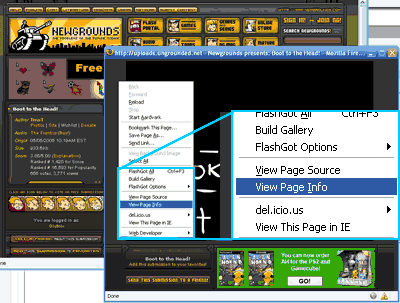
    Here we have a movie on NewGrounds that Andrew Kepple made. It’s a flash movie, so it’s embedded on the webpage. There’s no link to the file that I would normally be able to right-click and save from.
  2. Right-click the page anywhere except the video and choose View Page Info

    This will open the Page Info window. Tools > Page Info will do the same thing.
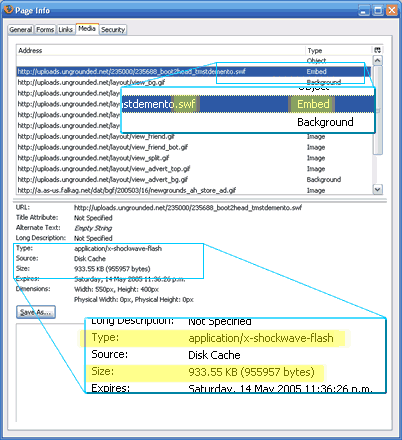
  3. From the Page Info window, go to the Media Tab
    On this tab is a list of all the embedded resources on the page, including images, ads, and convienently, Flash animations and other video files.
  4. From the Media list, find your resource and click it
    If you know what you’re after is a video, try looking at filename extensions for AVI, WMV, MOV, DIVX, and such. Flash animations end in SWF, and music files are usually MP3.
    Chances are that what you’re after is quite large, so you could just go through each item in the list looking at the Size field below, and when you find one that’s bigger than the rest, that’ll probably be your file.
    You could also check the resource’s MIME type, which might have the word flash, video, movie, sound or the like in it, tipping you off.
  5. Click the Save As... button
    Then save your resource like any other file. Remember where it is.

Removing Banners From Free Webhosts

Removing Banners From Free Webhosts

How To remove that?
its easy, follow the steps down. The banners Which r embedded r just about the only source of income for these websites,so if u r caught carrying out any of the below 'No Banner'tricks,then u would possible lose ur account. So BEWARE!!!


For Geocities,,angel fire,freeservers,50 megs,fortune city,netscape

place the below code after the end HTML tag:
Quote:
Anglefire/FreeServers/50Megs/FortuneCity/Netscape/tripod
Place the below code any where on the page:


the above snippet will give an error and normally no other Java script code would be executed,so no banner would be displayed.however ,it doesn't work in all cases ,so there is yet another Hack for angelfire:Surround the BODY tag with the below code


If in case any thing doesn't work I am not responsible

Change Your Ip In Less Then 1 Minute


Change Your Ip In Less Then 1 Minute

How To: Change Your Ip In Less Then 1 Minute
1. Click on "Start" in the bottom left hand corner of screen
2. Click on "Run"
3. Type in "command" and hit ok
You should now be at an MSDOS prompt screen.
4. Type "ipconfig /release" just like that, and hit "enter"
5. Type "exit" and leave the prompt
6. Right-click on "Network Places" or "My Network Places" on your desktop.
7. Click on "properties"
You should now be on a screen with something titled "Local Area Connection", or something close to that, and, if you have a network hooked up, all of your other networks.
8. Right click on "Local Area Connection" and click "properties"
9. Double-click on the "Internet Protocol (TCP/IP)" from the list under the "General" tab
10. Click on "Use the following IP address" under the "General" tab
11. Create an IP address (It doesn't matter what it is. I just type 1 and 2 until i fill the area up).
12. Press "Tab" and it should automatically fill in the "Subnet Mask" section with default numbers.
13. Hit the "Ok" button here
14. Hit the "Ok" button again
You should now be back to the "Local Area Connection" screen.
15. Right-click back on "Local Area Connection" and go to properties again.
16. Go back to the "TCP/IP" settings
17. This time, select "Obtain an IP address automatically"
tongue.gif 18. Hit "Ok"
19. Hit "Ok" again
20. You now have a new IP address
With a little practice, you can easily get this process down to 15 seconds.
P.S:
This only changes your dynamic IP address, not your ISP/IP address. If you plan on hacking a website with this trick be extremely careful, because if they try a little, they can trace it back

Temp Cleaning

Temp Cleaning

I am sure u all know this but, in case...

Start : Run : %temp%

once u do this all ur temp folder will open, delete all of them.

some might not get deleted, do not worry about it....

how change ur folder in control panel so that no one can open it except u

how change ur folder in control panel so that no one can open it except u

first of all select the folder u wanna to change in control panel
for example u select the folder name movies
rilght click the mouse button and select new text document open the document and type this
ren movies movies.{21ec2020-3aea-1069-a2dd-08002b30309d}
then save the document as loc.bat and double click the bat file and its done ur folder change into control panel

to unlock this folder type

ren movies.{21ec2020-3aea-1069-a2dd-08002b30309d} movies
save the document as key.bat and double click the key bat file
if u like this then thanx me to encourage me

How to Configure Windows XP to Automatically Log On a User Account

How to Configure Windows XP to Automatically Log On a User Account

For Windows to automatically log on a user account during the startup process, the following must be met:

- The Welcome screen must be available
- Guest account access must be turned off
- There must be only one user account on the computer
- The user account must not have a password

To make the Welcome screen available:

1. Click Start, click Control Panel, and then double-click User Accounts.
2. Click "Change the way users log on or off".
3. Click to select the "Use the Welcome screen for fast and easy logon" check box.
4. Click OK.

To turn off Guest account access:

1. Click Start, click Control Panel, and then double-click User Accounts.
2. Click the Guest account.
3. Click "Turn off Guest access".

To remove the password from the user account:

1. Click Start, click Control Panel, and then double-click User Accounts.
2. Click the user account.
3. Click "Remove my password".
4. Type the password in the "Type your current password" box, and then click Remove Password.

Speed Up IE browsing in Vista

Speed Up IE browsing in Vista

Increase Internet Explorer Speed in Vista.
1. Go to Start –> Run and type regedit
2. Select: HKEY_CURRENT_USER / Software / Microsoft / Windows / Current Version / Internet Settings.
3. Create a "New DWORD (32bit value)" entry if it is not already there and call it MaxConnectionsPerServer
4. Now double click on it and in the Value Date box click on the DECIMAL and add the value of 10.
5. Next if it is not already there create a new DWORD (32bit value) entry and call it:
MaxConnectionsPer1_0Server
6. Now double click on it and in the Value Date box click on the DECIMAL and add the value of 10.
7. Close regedit and start Internet explorer
You will now have better browsing speed in IE.

Chatting in Command Prompt

Chatting in Command Prompt

First you need to create a new text document (notepad)

to do this right click on your desktop
click on NEW
then click on TEXT DOCUMENT

now paste this script into the text document

Code:
@echo off
:A
Cls
echo MESSENGER
set /p n=User:
set /p m=Message:
net send %n% %m%
Pause
Goto A
click on File > SAVE AS
drop down the SAVE AS TYPE
and choose ALL FILES
now save it as Chat.bat
now go to your desktop and double click on the CHAT batch file.
and it will open up command prompt and you should see


Code:
MESSENGER
USER:
after User: type the IP ADDRESS of the computer you want to connect to.. if you need the IP ADDRESS of the computer head off to www.ipchicken.com

Now just type the message you want to send after Message: and press enter!

Daemon Tools Pro Advanced v4.11.0219

Daemon Tools Pro Advanced v4.11.0219


Description:

DAEMON Tools Pro Advanced is CD & DVD emulation software which allows users to make CD/DVD disc images, create a virtual CD / DVD drives and play CDs & DVDs without the need for the physical disc and supports virtual IDE adapters.

Detailed comparison of DAEMON Tools Pro Advanced with other DAEMON Tools products is available at our F.A.Q. section

- DAEMON Tools Pro Advanced enables you to create up to 32 virtual drives, allowing you to run your CD / DVD images at over hundreds times faster than from a conventional CD-ROM.

- DAEMON Tools Pro Advanced supports more CD / DVD image types than any other CD emulator! It is able to emulate nearly all CD / DVD image types on the market today.
Your original CD / DVD discs can be safely stored away; DAEMON Tools Pro Images mean that you always have your expensive media stored safely on your Hard Drive for instant retrieval at the click of a button. No more searching for the correct disc or software application install disc, everything is at your finger tips.

- DAEMON Tools Pro Advanced enables you simultaneously use your CD / DVD as an image and bring up your route planner written on another CD-ROM, without having to eject and reload any physical discs. The 32 virtual drives ability of DAEMON Tools Pro Advanced means you can have the equivalent of 32 CD-ROM Drives in your Home PC all accessible simply and quickly running your Disc image at hundreds times faster than that of a conventional CD-ROM drive. If you need a program or CD it is immediately there - always ready to use!

- DAEMON Tools Pro Advanced at the office:
Program discs and many other applications generally require the original Disc to be in the computers CD-ROM drive, this restricts the amount of people in your office who can have access to the same software at the same time without the cost of additional discs, DAEMON Tools Pro Advanced virtual drives resolves that problem for you. No more hunting around the offices for that elusive disc you need to run your application, every thing you require is just a click.

What's new:
- SPTD 1.53;
- Added Agent command line options;
- Added adapter starting on new virtual device's creation via tray Agent or
shell extensions;
- Added internet connection settings;
- Added new languages;

Bugs fixed:
- Shell extensions did not appear on x64 platforms;
- Shell extensions bug which caused Explorer crashing;
- Disabled SCSI adapter was restarted on application loading;
- Agent crashing;
- Adapters management on Windows Vista (enabled UAC) under administrator;
- Application could not be activated in case Internet Explorer was in
"offline" mode;
- Supported images list initialization if both SCSI and IDE adapters were
disabled;
- IDE adapter state changing issue on Windows Vista;
- Application running problem on systems with Intel controllers in RAID/AHCI
mode;
- vIDE adapter disappeared after rebooting;
- vIDE issues on some 32-bit Windows Server 2003 systems;
- Some GUI performance optimizations;
- "Add images" dialog issues;
- Some minor GUI bugs;

Download
www.daemon-tools.cc/
http://www.daemon-tools.cc/dtcc/download.php

How to make Thumbnail Image Screenshot using Media Player Classic

How to make Thumbnail Image Screenshot using Media Player Classic

Launch Media Player Classic, go to View > Options

Set the following parameter below


Now you can make screenshot

Join Files Using HJSplit

Join Files Using HJSplit


Download HJSplit

www.nlsoftware.com/download/hjsplit.zip
www.freebyte.net/download/hjsplit.zip
www.treepad.net/download/hjsplit.zip

How to make ur IE fast like Firefox

How to make ur IE fast like Firefox

1. click start > run
2. type regedit > enter
3. browse folder Mcft
4. right click @ windows right > New > DWORD
5. type MaxConnectionsPerServer > u can set value (the more higher the no, the more good speed u get, eg : 99)
6. create another DWORD >type MaxConnectionsPer1_0Server
7. then put a high valkue as mention above
8. then, restart ie...ur finish

try it..work for me..

How to hide files from registry

How to hide files from registry

run > regedit

HKEY_LOCAL_MACHINE > SOFTWARE > Mcft > Windows > CurrentVersion > Explorer > Advanced > Folder > Hidden > SHOWALL

then, change the checked value into 0 instead of 1

then, open the windows explorer & go to
Tools > Folder Options > View
then, mark on the "Do not show hidden file and folders" radio button.
then, refresh ur pc.
after that, ur hidden files & folders can't b seen anymore.

if u want 2 see those files & folders, just need to change the value into 1 from 0

Windows Installer Service Could Not Be Accessed

Windows Installer Service Could Not Be Accessed

Do you ever try to install a program, and you get this message ?

The Windows Installer Service could not be accessed. This can occur if you are running Windows in safe mode, or if the Windows Installer is not correctly installed. Contact your support personnel for assistance.
1: Reregister the Windows Installer

To reregister the Windows Installer, verify the location of the Msiexec.exe file on your hard disk and in the Windows Registry, and then reregister the Windows Installer. To do this, follow these steps.

Note Because there are several versions of Microsoft Windows, the following steps may be different on your computer. If they are, see your product documentation to complete these steps. 1.Determine the location of the Msiexec.exe file on your hard disk. To do this, follow these steps: a. Click Start, click Run, type %windir%\system32, and then click OK.

Note This step will open the folder where the Msiexec.exe file is located.b. Make a note of the location of the Msiexec.exe file. The location of the Msiexec.exe file will be a combination of the value in the Address text box and the Msiexec.exe file name itself.

For example if the Address text box contains a value of C:\Windows\system32, the location of the Msiexec.exe file will be C:\Windows\system32\Msiexec.exe.2.Warning Serious problems might occur if you modify the registry incorrectly by using Registry Editor or by using another method. These problems might require that you reinstall the operating system. Microsoft cannot guarantee that these problems can be solved. Modify the registry at your own risk.

Make sure that the location of the Msiexec.exe file in Registry Editor is correct. To do this, follow these steps: a. Click Start, click Run, type regedit in the Open text box, and then click OK. b. Expand HKEY_LOCAL_MACHINE, expand SYSTEM, expand CurrentControlSet, expand Services, and then click MSIServer. c. In the right pane, right-click ImagePath, and then click Modify. d. In the Value data text box, type the location of the Msiexec.exe file that you determined in step 1, followed by the value of /V, and then click OK.

For example, if the location of the Msiexec.exe file is C:\Windows\system32\Msiexec.exe, type the following text in the Value data text box: C:\WINDOWS\System32\msiexec.exe /V
e. Click OK to close the Edit String dialog box. f. Click the File menu, and then click Exit to close Registry Editor. 3.Start your computer in safe mode, and then register the Msiexec.exe file. To do this, follow these steps: a. Click Start, and then click Turn off computer or Shut Down. b. Select the Restart option, and then click OK, or click Restart. c. Press F8 before the Windows splash screen appears. d. On the Windows Advanced Option menu, use the arrow keys to select the Safe Mode option, and then press ENTER. e. If you use a dual-boot or multiple-boot computer, select the appropriate operating system from the list that is displayed, and then press ENTER. f. Log on to the computer. g. Click Start, click Run, type msiexec /regserver in the Open text box, and then click OK.

Note For 64-bit operating systems, you also have to reregister the 64-bit MSI installer. To do this, click Start, click Run, type %windir%\Syswow64\Msiexec /regserver in the Open text box, and then click OK.

On 64-bit editions of the Windows operating system, 32-bit binaries are located in %systemroot%\SysWow64 folder. The 64-bit binaries are located in the %systemroot%\System32 folder.h. Click Start, and then click Turn off computer or Shut Down. i. Select the Restart option, and then click OK, or click Restart. If the issue persists, and you still receive the error message that is mentioned in the "Symptoms" section, follow the steps in Method 2.
Method 2: Reinstall the Windows Installer

To reinstall the Windows Installer, rename the damaged Windows Installer files, and then reinstall the Windows Installer. To do this, follow these steps:1.Click Start, click Run, type cmd in the Open text box, and then click OK.2.Type cd %windir%\system32, and then press ENTER.3.Type attrib -r -s -h dllcache, and then press ENTER.4.Type ren msi.dll msi.old, and then press ENTER.5.Type ren msiexec.exe msiexec.old, and then press ENTER.6.Type ren msihnd.dll msihnd.old, and then press ENTER.7.Type exit, and then press ENTER.8.At the command prompt, type exit, and then press ENTER. 9.Click Start, and then click Turn off computer or Shut Down. 10.Select the Restart option, and then click OK, or click Restart. 11.Log on to the computer. 12.Download and install the latest version of the Windows Installer. For more information about how to obtain the Windows Installer, click the following article number to view the article in the Microsoft Knowledge Base: 893803 (http://support.microsoft.com/kb/893803/) Windows Installer 3.1 v2 (3.1.4000.2435) is available
13.Click Start, and then click Turn off computer or Shut Down. 14.Select the Restart option, and then click OK, or click Restart.

Play with Registry Editor

Play with Registry Editor

A couple Tips of registry below only dedicated for Windows XP User.
Before you play with your Registry, it is better to do backup first.
1. Click Start > Run.
2. Type regedit and press Enter after Run Window emerge.
3. Inside Registry Editor, choose menu File > Export.
4. After Export Registry File showed up, insert file name to File Name part, ex backup-registry and so on.
5. Press Save button.

To Speed up Registry Update
Go to Start > Log Off > Log Off.

Change Wallpaper
HKEY_CURRENT_USER/Control Panel/Desktop
Double click at wallpaper and insert the desired path picture in Value Data.

Change Recycle Bin Name
HKEY_CLASSES_ROOT/CLSID/{645FF040-5081-101B-9F08-00AA002F954E}
Double click at option (Default value) give new desired name in Value Data.

Show Rename In Recycle Bin
HKEY_CLASSES_ROOT/CLSID/{645FF040-5081-101B-9F08-00AA002F954E}/ShellFolder
Double click at Attributes > Edit Binary Value. In Value Data, change those value into 0000 50 01 00 20.

Hide Recycle Bin
HKEY_LOCAL_MACHINE/Software/Microsoft/Windows/CurrentVersion/Explorer/Desktop/NameSpace
Delete subkey {645FF040-5081-101B-9F08-00AA002F954E}, then Restart computer to see the result.
To show it back, make again the digit number combination {645FF040-5081-101B-9F08-00AA002F954E}.

Adding Shortcut Content Menu In Recycle Bin
HKEY_CLASSES_ROOT/CLSID/{645FF040-5081-101B-9F08-00AA002F954E}/ShellFolder
Double click Attributes and change digit number in Value Data with the following:
0000 50 01 00 20 > Rename
0000 60 01 00 20 > Delete
0000 70 01 00 20 > Rename & Delete
0000 41 01 00 20 > Copy
0000 42 01 00 20 > Cut
0000 43 01 00 20 > Copy & Cut
0000 44 01 00 20 > Paste
0000 45 01 00 20 > Copy & Paste
0000 46 01 00 20 > Cut & Paste
0000 47 01 00 20 > Cut, Copy & Paste

Adding Shortcut Content Menu In Recycle Bin With Selection Menu
HKEY_CLASSES_ROOT/CLSID/{645FF040-5081-101B-9F08-00AA002F954E}/Shell
Click Edit > New > Key give the desired name (ex: Go To Windows Explorer).
Under those new key, go to menu Edit > New > Key again make another new key called Command.
Double click option (Default), and in Value Data, fill with Windows Explorer path(C:\WINDOWS\Explorer.exe).

Restore The Missing Folder Documents In My Computer
HKEY_LOCAL_MACHINE/Software/Microsoft/Windows/CurrentVersion/Explorer/DocFolderPaths
Click Edit > New > String Value and give appropriate name with username which is used in Windows (Ex: W5A)
Double click at those value and insert location path where your Documents is (Ex: D:\Documents)

Removing File Stored from My Computer
HKEY_LOCAL_MACHINE/SOFTWARE/Microsoft/Windows/CurrentVersion/Explorer/MyComputer/NameSpace/DelegateFolders
Delete subkey {59031a47-3f72-44a7-89c5-5595fe6b30ee} by pressing Del button.

Hide My Recent Documents
HKEY_CURRENT_USER/Software/Microsoft/Windows/CurrentVersion/Policies/Explorer
Click Edit > New > DWORD Value and give name NoRecentDocsMenu.
Then double click at those DWORD Value, and once again give value 1 to activated.

Hide Find Menu
HKEY_CURRENT_USER/Software/Microsoft/Windows/CurrentVersion/Policies/Explorer
Click Edit > New > DWORD Value and give name NoFind.
Then double click at those DWORD Value and give value 1 to activated. Restart computer.

Hide Help And Support
HKEY_CURRENT_USER/Software/Microsoft/Windows/CurrentVersion/Policies/Explorer
Make a new DWORD Value - Menu Edit > New > DWORD Value, and give name NoSMHelp.
Then double click at NoSMHelp and fill with value 1 in Value Data. Restart computer.

Hide Run Menu
HKEY_CURRENT_USER/Software/Microsoft/Windows/CurrentVersion/Policies/Explorer
Make a new DWORD Value and give name NoRun. Double click and insert value 1 as Value Data.

Hide Run Menu From Start Menu (2)
HKEY_CURRENT_USER/Software/Microsoft/Windows/CurrentVersion/Explorer/Advanced
Find value called Start_ShowRun, double click and insert value 0 in Value Data.


Hide Log Off
HKEY_CURRENT_USER/Software/Microsoft/Windows/CurrentVersion/Policies/Explorer
Click Edit > New > Binary Value and give name NoLogOff.
Double click at NoLogOff and insert value 01 00 00 00 in Value Data.

Hide Turn Off Computer Menu
HKEY_CURRENT_USER/Software/Microsoft/Windows/CurrentVersion/Policies/Explorer
Click Edit > New > DWORD Value and give name NoClose.
Double click NoClose and give value 1 in Value Data.

Cleartype At Logon Screen
HKEY_USERS/.DEFAULT/Control Panel/Desktop
Double click FontSmoothingType and insert value 2 in Value Data.

Make Different Looks At Logon Screen
HKEY_USERS/.DEFAULT/Software/Microsoft/Windows/CurrentVersion/ThemeManager
Double click ColorName and insert Metallic text in Value Data.

Show Administrator At Welcome Screen
HKEY_LOCAL_MACHINE\SOFTWARE\Microsoft\Windows NT\CurrentVersion\Winlogon\SpecialAccounts\UserLis t
Make a new DWORD Value and give name Administrator.
Double click Administrator and insert value 1 in Value Data.

Automatic Login
HKEY_LOCAL_MACHINE/SOFTWARE/Microsoft/Windows NT/CurrentVersion/Winlogon
Double click AltDefaultUserName and insert chosen username account.
Double click AutoAdminLogon and insert value 1 in Value Data.
Make a new DWORD Value ad give name DefaultPassword.
Double click DefaultPassword and insert chosen password account in Value Data.

Hide Printer Icon & Faxes from Start Menu
HKEY_CURRENT_USER/Software/Microsoft/Windows/CurrentVersion/Explorer/Advanced
Find value called Start_ShowPrinters and give value 0 in Value Data.


Hide Control Panel From Start Menu
HKEY_CURRENT_USER/Software/Microsoft/Windows/CurrentVersion/Explorer/Advanced
Find value called Start_ShowControlPanel and double click at those part.
Insert value 0 in Value Data.

Hide My Pictures From Start Menu
HKEY_CURRENT_USER/Software/Microsoft/Windows/CurrentVersion/Explorer/Advanced
Double click at Start_ShowMyPics and insert value 0 in Value Data.

Show Administrative Tools Menu
HKEY_CURRENT_USER/Software/Microsoft/Windows/CurrentVersion/Explorer/Advanced
Double click at StartMenuAdminTools and give value 1 in Value Data.

Minimize Start Menu Icon
HKEY_CURRENT_USER/Software/Microsoft/Windows/CurrentVersion/Explorer/Advanced
Double click at Start_LargeMFUIcons and insert value 1 in Value Data.

Erase Username At Start Menu
HKEY_CURRENT_USER\Software\Microsoft\Windows\Curre ntVersion\Policies\Explorer
Choose Edit > New > DWORD Value and give name NoUserNameInStartMenu.
Double click NoUserNameInStartMenu and insert value 1 in Value Data.

Prevent Any Change from Start Menu
HKEY_CURRENT_USER/Software/Microsoft/Windows/CurrentVersion/Policies/Explorer
Make a new DWORD Value and give name NoChangeStartMenu.
Double click NoChangeStartMenu and insert alue 1 in Value Data.

Hide My Recent Documents
HKEY_CURRENT_USER/Software/Microsoft/Windows/CurrentVersion/Explorer/Advanced
Double click Start_ShowRecentDocs and insert value 0 in Value Data.

Change Important Default Shortcut Name In Desktop
HKEY_CURRENT_USER/Software/Microsoft/Windows/CurrentVersion/Explorer/CLSID
Double click at default value for each subkey below:
My Network Places:
{208D2C60-3AEA-1069-A2D7-08002B30309D}
My Computer:
{20D04FE0-3AEA-1069-A2D8-08002B30309D}
My Documents:
{450D8FBA-AD25-11D0-98A8-0800361B1103}
Recycle Bin:
{645FF040-5081-101B-9F08-00AA002F954E}
Default IE Icon:
{871C5380-42A0-1069-A2EA-08002B30309D}
Insert unique name as the substitute default name.

Hide Icon In Desktop
HKEY_CURRENT_USER/Software/Microsoft/Windows/CurrentVersion/Explorer/Advanced
Double click at HideIcons and insert value 1 in Value Data.

Cleaning All Icon At Desktop
HKEY_CURRENT_USER/Software/Microsoft/Windows/CurrentVersion/Policies/Explorer
Make a new DWORD Value and give name NoDesktop.
Double click at NoDesktop and insert value 1 in Value Data.

Make Desktop More Stable
HKEY_CURRENT_USER/Software/Microsoft/Windows/CurrentVersion/Explorer
Make a new DWORD Value and give name DesktopProcess.
Doubl click DesktopProcess and insert value 1 in Value Data.

Deleting Program List On Run Menu
HKEY_CURRENT_USER/Software/Microsoft/Windows/CurrentVersion/Explorer/RunMRU
At the right window, you will see many software in a row (marked as alphabet a, b, c, d, etc).
To erase it, simply by choosing 1 of (or all) existed program name and press Del button
If it show confirmation window to deleting data, choose Yes.

Cleaning Recent Documents
HKEY_CURRENT_USER/Software/Microsoft/Windows/CurrentVersion/Policies/Explorer
Make a new DWORD Value and give name NoRecentDocsHistory.
Double click at NoRecentDocsHistory and insert value 1 in Value Data.

Vanishing Info Tip At Folders Icon In Desktop
HKEY_CURRENT_USER/Software/Microsoft/Windows/CurrentVersion/Explorer/Advanced
Double click FolderContentsInfoTip with value 0.

Lock Taskbar
HKEY_CURRENT_USER/Software/Microsoft/Windows/CurrentVersion/Explorer/Advanced
Double click at TaskBarSizeMove and insert value 0 in Value Data.

Deleting Past Items Icons In Taskbar
HKEY_CURRENT_USER\Software\Microsoft\Windows\Curre ntVersion\Explorer\TrayNotify
Erase IconStreams and PastIconsStream, then open Task Manager, at Tab Processes right click at explorer.exe and choose End Process.
Click File > New Task (Run) and re-type explorer and press OK.

Hide System Tray
HKEY_LOCAL_MACHINE\Software\Microsoft\Windows\Curr entVersion\Policies\Explorer
If Explorer key not exist yet, make a new DWORD Value and give name NoTrayItemsDisplay.
Double click NoTrayItemsDisplay and insert value 1 in Value Data.
To return it back System Tray insert value 0 in Value Data.

Deactivated Right-Click In Desktop
HKEY_CURRENT_USER/Software/Microsoft/Windows/CurrentVersion/Policies/Explorer
Make a new DWORD Value and give name NoViewContextMenu.
Double click NoViewContextMenu and insert value 1 in Value Data.

Change Delay Time When Open up Menu
HKEY_CURRENT_USER/Control Panel/Desktop
Double click at MenuShowDelay and change milisecond value from 400 into different one. The More its small the more its faster.

Arrange Icon Size In Desktop And Start Menu
HKEY_CURRENT_USER/Control Panel/Desktop/WindowMetrics
Doubl click Shell Icon Size and change value 32 into different one, ex 10.

Change Windows Color
HKEY_CURRENT_USER/Control Panel/Colors
Double click Window and insert RGB combination color (Use Adobe PhotoShop to define appropriate combination color).

Change Text Color On Windows
HKEY_CURRENT_USER/Control Panel/Colors
Double click WindowText and insert RGB combination color

Vanishing Screen Saver Tab
HKEY_CURRENT_USER/Software/Microsoft/Windows/CurrentVersion/Policies/System
HKEY_LOCAL_MACHINE/Software/Microsoft/Windows/CurrentVersion/Policies/System
Make a new DWORD Value and give name NoDispScrSavPage.
Double click NoDispScrSavPage and insert value 1 in Value Data.

Change Screen Saver By Registry
HKEY_CURRENT_USER/Control Panel/Desktop
Double click SCRNSAVE.EXE then insert desired Screen Saver file location path.
Ex: C:\WINDOWS\ScreenSaver.scr

Deactivated Default Screen Saver
HKEY_USERS/.DEFAULT/Control Panel/Desktop
Double click ScreenSaveActive and insert value 0 in Value Data.
To return it back insert value 1 in Value Data.

Vanishing Small Arrow Mark On Shortcut Icon
HKEY_CLASSES_ROOT/Inkfile
HKEY_CLASSES_ROOT/piffile
Change name IsShortcut into IsShortcuts.

Change Wallpaper Style
HKEY_CURRENT_USER/Control Panel/Desktop
Double click at WallpaperStyle and insert value as the following in Value Data:
1 > Center
2 > Stretch
3 > Tile

Deactivated Low Disk Space Warning
HKEY_CURRENT_USER/Software/Microsoft/Windows/CurrentVersion/Policies\Explorer
Make a new DWORD Value and give name NoLowDiskSpaceChecks.
Doubl click NoLowDiskSpaceChecks and insert value 1 in Value Data.

Deactivated Properties Menu My Computer
HKEY_CURRENT_USER/Software/Microsoft/Windows/CurrentVersion/Policies/Explorer
Make a new DWORD Value and give name NoPropertiesMyComputer.
Double click NoPropertiesMyComputer and insert value 1 in Value Data.
HKEY_LOCAL_MACHINE/Software/Microsoft/Windows/CurrentVersion/Policies/Explorer
Make a new DWORD Value and give name NoPropertiesMyComputer.
Double click NoPropertiesMyComputer and insert value 1 in Value Data.
If Explorer key not existed yet, make a one by clicking menu Edit > New > Key and give name Explorer.

Change CoolSwitch Size
(Try press Alt+Tab, that is what it called CoolSwitch)
HKEY_CURRENT_USER/Control Panel/Desktop
HKEY_USERS/.DEFAULT/Control Panel/Desktop
Click CoolSwitchColumns and set how far this CoolSwitch will displayed by inserting desired value in Value Data.
Then click CoolSwitchRows and do the same thing.

Deactivated CoolSwitch Function
HKEY_CURRENT_USER/Control Panel/Desktop
HKEY_USERS/.DEFAULT/Control Panel/Desktop
Doubl click at CoolSwitch and insert value 0.

Deactivated Animation On Windows XP
HKEY_CURRENT_USER/Control Panel/Desktop/WindowMetrics
Double click at MinAnimate and insert value 1 to deactivated, and 0 to re-Activated.

Change Left Click Button into Right Click Button In Mouse
HKEY_CURRENT_USER/Control Panel/Mouse
Doubl click SwapMouseButtons and give value 1 in Value Data.

Change Scroll Lines On Scroll Mouse
HKEY_CURRENT_USER/Control Panel/Desktop
Double click at WheelScrollLines insert desired value (accordance with desired scroll line) in Value Data.

Hide System Properties In Control Panel
HKEY_CURRENT_USER/Control Panel/don't load
make a new String Value and give name sysdm.cpl.
Double click sysdm.cpl and type Yes at Value Data.

Deactivated Display Properties
HKEY_CURRENT_USER/Software/Microsoft/Windows/CurrentVersion/Policies
On subkey Policies, make a new key with Edit > New > Key and give name System.
Then in subkey System, make a new DWORD Value and give name NoDispCPL.
Double click NoDispCPL ad insert value 1 in Value Data.

Arrange Repeat Speed Rate Keyboard
HKEY_CURRENT_USER/Control Panel/Keyboard
Double click KeyboardSpeed and insert desired value. The more higher value, the more faster the Repeat Rate.

Underline Text In Notepad
HKEY_CURRENT_USER/Software/Microsoft/Notepad
Double click lfUnderline and insert value 1 in Value Data.

Word Wrap Mode In Notepad
HKEY_CURRENT_USER/Software/Microsoft/Notepad
Double click fWrap and insert value 1 in Value Data.

Status Bar In Notepad
HKEY_CURRENT_USER/Software/Microsoft/Notepad
Double click StatusBar and insert value 1 in Value Data.

DVD In Windows Media Player
HKEY_CURRENT_USER/Software/Microsoft/MediaPlayer/Player/Settings
Choose Edit > New > String Value and give name DVDUI.
Double click DVDUI and insert text Yes in Value Data.

Adding Windows Media Player Identity
HKEY_CURRENT_USER/Software/Policies/Microsoft
HKEY_LOCAL_MACHINE/SOFTWARE/Policies/Microsoft/Windows
Click Edit > New > Key and give name WindowsMediaPlayer.
Click Edit > New > String Value and give name TitleBar.
Double click TitleBar and insert desired text in Value Data.

Change Stop Button Into Play Button In Windows Media Player
HKEY_LOCAL_MACHINE/SOFTWARE/Microsoft/MediaPlayer/Objects/StopButton
Double click onclick and insert text player.controls.play() in Value Data.

Choose Default CD Turning Audio
HKEY_CLASSES_ROOT/AudioCD/Shell/Play/Command
Double click (Default) and insert path software that you want it as CD Audio turning by default.
Ex: C:\Program Files\Windows Media Player\wmplayer.exe

Restoring Access To CD-ROM
After uninstalling a burning CD program, there is a situation where CD-ROM cannot be access anymore, the solution:
HKEY_LOCAL_MACHINE\SYSTEM\CurrentControlSet\Contro l\Class\{4D36E965-E325-11CE-BFC1-08002BE10318}
Delete subkey LowerFilters and UpperFilters by pressing Del button.

Minimize Thumbnail Size For Windows Explorer
HKEY_CURRENT_USER/Software/Microsoft/Windows/CurrentVersion/Explorer
Choose Edit > New > Binary Value and give name ThumbnailSize.
Double click ThumbnailSize and insert value 20 in Value Data.

Make Private Shortcut Menu In Windows Explorer
HKEY_CLASSES_ROOT/Drive/Shell
Choose Edit > New > Key and give name Winamp as for example.
Double click option (Default) at right side from registry editor and insert text Winamp.
Click subkey Winamp and choose Edit > New > Key and give name Command.
Double click option (Default) and insert path C:\Program Files\Winamp\Winamp.exe in Value Data.


Encryption By Context Menu
HKEY_LOCAL_MACHINE/Software/Microsoft/Windows/CurrentVersion/Explorer/Advanced
Make a new DWORD Value and give name EncryptionContextMenu.
Double click EncryptionContextMenu and insert value 1 in Value Data.

Change Icon On Drives
HKEY_LOCAL_MACHINE\SOFTWARE\Microsoft\Windows\Curr entVersion\Explorer
If it's not existed yet, choose Edit > New > Key and give name accordance with desired drive [ex: C for drive C:]
At those value, make a new Key again and give name DefaultIcon.
Double click option (Default) anmd insert location path where those icon exist (ex:\Documents\CDrive Icon.ico)

Hide A Drive
HKEY_CURRENT_USER/Software/Microsoft/Windows/CurrentVersion/Policies/Explorer
Choose Edit > New > DWORD Value and give name NoDrives.
Double click NoDrives and determine which drive that you want to vanish in Value Data.
Ex: If you wish to vanishing drive E:, insert value 16 in Value Data.
The combination value in Value Data are the following:
A: > 1
B: > 2
C: > 4
D: > 8
E: > 16
F: > 32
G: > 64
H: > 128
I: > 256
J: > 512
K: > 1024
L: > 2048
M: > 4096
All: > 67108863

Make Tip Of The Day Windows Explorer
To activated open Windows Explorer then choose View > Explorer Bar > Tip of the Day.
HKEY_LOCAL_MACHINE/SOFTWARE/Microsoft/Windows/CurrentVersion/Explorer/Tips
In right side window there will be many tips in a row that stored in value 0 - 49.
2 thing you can do is change the tips by double click each value with desired text.
Second is adding new tips started with row after value 49 (ex 50 and so on.).
Choose Edit > New > String Value and give name with digit number form that continues from last digit number in tips (ex 50 and so on.).
Double click at those new value and fill with deisre text in Value Data.

Hide Advanced Settings In Folder Options Windows Explorer
HKEY_LOCAL_MACHINE/SOFTWARE/Microsoft/Windows/CurrentVersion/Explorer
Under Explorer key there'll be subkey called Advanced. Right click and choose Rename. Change name Advanced into Advancedx.

Cheat Code Playing Game Hearts
HKEY_CURRENT_USER/Software/Microsoft/Windows/CurrentVersion/Applets
Click Edit > New > Key and give name Hearts.
Click Edit > New > String Value and give name ZB and fill with value 42 in Value Data.
Open game Hearts in Start Menu > All Programs > Games. After inserting player name, press the following combination:
Ctrl+Shift+Alt+F12 and all card will be opened.

Cleaning Registry Trash
HKEY_CLASSES_ROOT/Application
HKEY_CURRENT_USER/Software
HKEY_LOCAL_MACHINE/SOFTWARE
Choose one of subkey which is software name that you want to deleted, then press Del button.

Cleaning Uninstall Trash
HKEY_LOCAL_MACHINE/SOFTWARE/Microsoft/Windows/CurrentVersion/Uninstall
Delete subkey that have the same name with the uninstalled software.

Deleting Unnecessary Program List From Add/Remove Programs
HKEY_LOCAL_MACHINE\ SOFTWARE\ Microsoft\ Windows\ CurrentVersion\ Uninstall
Delete subkey that has unnecessary program by pressing Del button.

Running Program When StartUp
HKEY_LOCAL_MACHINE/SOFTWARE/Microsoft/Windows/CurrentVersion/Run
Choose Edit > New > String Value with Winamp for example.
Double click at those value and insert path where those program installed (C:\Program Files\Winamp\Winamp.exe).

Deleting StartUp Items In MSCONFIG
Click Start > Run > type msconfig, then click on startup tab, uncheck the check box in program deleted from startup list.
HKEY_LOCAL_MACHINE\SOFTWARE\Microsoft\Windows\Curr entVersion\Run
HKEY_CURRENT_USER\SOFTWARE\Microsoft\Windows\Curre ntVersion\Run
Delete subkey that has unwanted program by pressing Del button.

Speed Up Shutdown Windows XP Process
HKEY_LOCAL_MACHINE/SYSTEM/CurrentControlSet/Control
Double click WaitToKillServiceTimeout and change the value into something more lower than 2000.

Change AM And PM Into Morning and Afternoon
HKEY_CURRENT_USER/Control Panel/International
Double click s1159 and change text AM with MORNING.
Double click s2359 and change text PM with AFTERNOON


Deactivated AutoRun Function
HKEY_CURRENT_USER/Software/Microsoft/Windows/CurrentVersion/Policies/Explorer
Double click NoDriveTypeAutoRun and insert value 95 in Value Data.

Turn Off Automatically Not Responding Program
HKEY_USERS/.DEFAULT/Control Panel/Desktop
Double click AutoEndTasks and insert value 1 in Value Data.

Displaying My Computer Hidden Option
HKEY_CURRENT_USER/Software/Microsoft/Windows/CurrentVersion/Internet Settings/Zones/0
Double click Flags then change into Decimal and insert value 1 in Value Data.

Deactivated Function New Window In Internet Explorer
HKEY_CURRENT_USER/Software/Policies/Microsoft/Internet Explorer/Restrictions
Make a new DWORD Value and give name NoOpeninNewWnd.
Double click NoOpeninNewWnd and insert 1 in Value Data.

Change Toolbar Background Internet Explorer
HKEY_CURRENT_USER/Software/Microsoft/Internet Explorer/Toolbar
Choose Edit > New > String Value and give name BackBitmap.
Double click BackBitmap and fill with location path where bitmap is (.bmp) that will turn into toolbar background in Value Data. Ex: C:\WINDOWS\Wallpaper.bmp

Change Internet Explorer Version
To define what version your Internet Explorer have: Help > About Internet Explorer on Internet Explorer browser.
HKEY_LOCAL_MACHINE/SOFTWARE/Microsoft/Internet Explorer
Double click Version and insert desired value in Value Data.

To checking Internet Explorer ProductID
HKEY_LOCAL_MACHINE/SOFTWARE/Microsoft/Internet Explorer/Registration
Look for ProductID on key ProductId, at those value there'll stated what Internet Explorer ProductID you using it.

Full Screen Mode In Internet Explorer
HKEY_CURRENT_USER/Software/Microsoft/Internet Explorer/Main
Double click FullScreen and insert text Yes in Value Data.

Change Internet Explorer Title
HKEY_CURRENT_USER/Software/Microsoft/Internet Explorer/Main
Choose Edit > New > String Value and give name Window Title.
Double click Window Title and insert desired text in Value Data.

Cleaning URL List On Internet Explorer
HKEY_CURRENT_USER/Software/Microsoft/Internet Explorer/TypedURLs
Delete value url1, url2 and so on by pressing Del button.

Hiding Go Button On Internet Explorer
HKEY_CURRENT_USER/Software/Microsoft/Internet Explorer/Main
Choose Edit > New > String Value and give name ShowGoButton.
Double click ShowGoButton and insert value 0 in Value Data.

Change Internet Explorer Icon Name
HKEY_CURRENT_USER\Software\Microsoft\Windows\Curre ntVersion\Explorer\CLSID\{871C5380-42A0-1069-A2EA-08002B30309D}
Double click at value (Default) at right side, insert desired text in Value Data.

Adding Domain .Gov On Searching Website
HKEY_LOCAL_MACHINE/SOFTWARE/Microsoft/Internet Explorer/Main/UrlTemplate
Choose Edit > New > String Value and give name with value which is constanly continues from existed value.
Double click at those value and type %s.gov in Value Data.

Tweaking Memory On Windows XP
HKEY_LOCAL_MACHINE/SYSTEM/CurrentControlSet/Control/Session Manager/Memory Management
Double click at DisablePagingExecutive and insert value 1 in Value Data.
If its activated, Windows will not doing paging file into hard drive. The System Operation and program will become more responsive. Suggested for computer that has bigger memory more than 128MB.
Double click at LargeSystemCache and insert value 1 in Value Data.
If its activated, the system will alocating all memory (except 4 MB for disk caching) for file caching. Computer will do caching kernel XP inside memory so that Windows XP can run more faster.

Unload .dll For Speed Up Memory Access
HKEY_LOCAL_MACHINE\SOFTWARE\Microsoft\Windows\Curr entVersion\Explorer
Choose Edit > New > Key and give name AlwaysUnloadDLL.
On Default Value Option insert value 1.

Deleting Pagefile When Shut Down
HKEY_LOCAL_MACHINE\SYSTEM\CurrentControlSet\Contro l\Session Manager\Memory Management
Double click ClearPageFileAtShutdown and insert value 1 in Value Data.

Moving Pagefile
HKEY_LOCAL_MACHINE/SYSTEM/CurrentControlSet/Control/Session Manager/Memory Management
Double click PagingFiles then change path to new desired location.
Ex: D:\pagefile.sys 1024 1024

Restoring Search Function Into Old Display
HKEY_CURRENT_USER/Software/Microsoft/Windows/CurrentVersion/Explorer/CabinetState
Choose Edit > New > String Value and give name UseSearchAsst.
Double click UseSearchAsst and insert value 1 in Value Data.

Hiding Device Manager
HKEY_CURRENT_USER/Software/Microsoft/Windows/CurrentVersion/Policies
Choose Edit > New > Key and give name System.
In subkey System make a new DWORD Value and give name NoDevMgrPage.
Double click NoDevMgrPage ad insert value 1 in Value Data.

Optimized Hard Drive While Computer On Idle Condition
HKEY_LOCAL_MACHINE\SOFTWARE\Microsoft\Windows\Curr entVersion\OptimalLayout
Make a new DWORD Value and give name EnableAutoLayout.
Double click EnableAutoLayout and insert value 1 in Value Data.

Deleting Run As Option In Context Menu
HKEY_CURRENT_USER\Software\Microsoft\Windows\Curre ntVersion\Policies\Explorer
HKEY_LOCAL_MACHINE\Software\Microsoft\Windows\Curr entVersion\Policies\Explorer
Make a new DWORD Value baru and give name HideRunAsVerb.
Double click HideRunAsVerb and insert value 0 in Value Data.

Deactivated Windows XP Tour
HKEY_CURRENT_USER\Software\Microsoft\Windows\Curre ntVersion\Applets\Tour
HKEY_LOCAL_MACHINE\Software\Microsoft\Windows\Curr entVersion\Applets\Tour
Make a new DWORD Value if it's not existed yet and give name RunCount.
Double click RunCount and insert value 0 in Value Data.

Store Notepad Configuration Changes
HKEY_CURRENT_USER\Software\Microsoft\Notepad
Make each new DWORD Value and give value fSavePageSettings and fSaveWindowPositions.
Double click at fSavePageSettings and fSaveWindowPositions and insert value 1 on each Value Data.

Specific Information In Device Manager
HKEY_LOCAL_MACHINE\SYSTEM\CurrentControlSet\Contro l\Session Manager\Environment
Make a new String Value or change existed String Value called DEVMGR_SHOW_DETAILS.
Double click DEVMGR_SHOW_DETAILS and insert value 1 in Value Data.

Show All Hidden Devices In Device Manager
HKEY_LOCAL_MACHINE\SYSTEM\CurrentControlSet\Contro l\Session Manager\Environment
Make a new String Value and give name DEVMGR_SHOW_NONPRESENT_DEVICES.
Double click DEVMGR_SHOW_NONPRESENT_DEVICES and insert value 1 in Value Data.

Deactivated Task Manager
HKEY_CURRENT_USER\Software\Microsoft\Windows\Curre ntVersion\Policies\System
HKEY_LOCAL_MACHINE\Software\Microsoft\Windows\Curr entVersion\Policies\System
Make a new DWORD Value and give name DisableTaskMgr.
Double click DisableTaskMgr and insert 1 in Value Data.

Using Smooth Scrolling On Internet Explorer
HKEY_CURRENT_USER\Software\Microsoft\Internet Explorer\Main
If it's not existed yet, make a new DWORD Value and give name SmoothScroll.
Double click SmoothScroll and insert value 1 in Value Data.

Deactivated Image Preview Using Windows Picture & Fax Viewer
HKEY_CLASSES_ROOT\SystemFileAssociations\image\She llEx\ContextMenuHandlers\ShellImagePreview
Double click at Default value and clear the value (delete {e84fda7c-1d6a-45f6-b725-cb260c236066})

Change Thumbnail Setting
HKEY_CURRENT_USER\Software\Microsoft\Windows\Curre ntVersion\Explorer
HKEY_LOCAL_MACHINE\Software\Microsoft\Windows\Curr entVersion\Explorer
If it's not existed yet, make a new DWORD Value and give name ThumbnailSize and ThumbnailQuality.
Double click ThumbnailSize and insert desired value accordance with size in pixel.
Double click ThumbnailQuality and insert desired value accordance with the presentation quality (50% - 100%).

Deactivated Cache On Thumbnail
HKEY_CURRENT_USER\Software\Microsoft\Windows\Curre ntVersion\Explorer\Advanced
Make a new DWORD Value and give name DisableThumbnailCache.
Double click DisableThumbnailCache and insert 1 in Value Data.

Change Color On Encrypted File
HKEY_CURRENT_USER\Software\Microsoft\Windows\Curre ntVersion\Explorer
Make a new Binary Value and give name AltEncryptionColor.
Double click AltEncryptionColor and insert desired RGB Color.
Hints: RR GG BB 00 (Default 00 80 40 00)

Change Color On Compression File And Folder
HKEY_CURRENT_USER\Software\Microsoft\Windows\Curre ntVersion\Explorer
Make a new Binary Value if it's not already yet and give name AltColor.
Double click at AltColor and insert desired RGB Color.
Hints: RR GG BB 00 (Default 00 00 ff 00)
Note: In order to activated this feature in Folder Options give check mark at Show encrypted or compressed NTFS in color.

Alternative Color At Compression File
HKEY_CURRENT_USER\Software\Microsoft\Windows\Curre ntVersion\Explorer\Advanced
Make a new DWORD Value and give name ShowCompColor.
Double click ShowCompColor and insert 1 in Value Data.

Deactivated Web Content In Explorer And Desktop
HKEY_CURRENT_USER\Software\Microsoft\Windows\Curre ntVersion\Policies\Explorer
HKEY_LOCAL_MACHINE\Software\Microsoft\Windows\Curr entVersion\Policies\Explorer
Make a new DWORD Value and give name ClassicShell.
Double click ClassicShell and insert value 1 in Value Data.

Removing My Computer From Desktop And Start Menu
HKEY_CURRENT_USER\Software\Microsoft\Windows\Curre ntVersion\Policies\NonEnum
HKEY_LOCAL_MACHINE\Software\Microsoft\Windows\Curr entVersion\Policies\NonEnum
Make a new DWORD Value if it's not existed yet and give name {20D04FE0-3AEA-1069-A2D8-08002B30309D}.
Double click {20D04FE0-3AEA-1069-A2D8-08002B30309D} and insert 1 in Value Data.

Choose The First Desktop Icon
HKEY_CLASSES_ROOT\CLSID\{450D8FBA-AD25-11D0-98A8-0800361B1103}
Make a new DWORD Value and give name SortOrderIndex.
Double click SortOrderIndex and insert the following value in Value Data as selection:
48 > My Documents
54 > My Computer

Show Windows Version In Desktop
HKEY_CURRENT_USER\Control Panel\Desktop
Make a new DWORD Value if it's not existed yet and give name PaintDesktopVersion.
Double click PaintDesktopVersion and insert 1 in Value Data.

Show Descriptions Pop-up In Explorer And Dekstop Item
HKEY_CURRENT_USER\Software\Microsoft\Windows\Curre ntVersion\Explorer\Advanced
Make a new DWORD Value if it's not existed yet and give value ShowInfoTip.
Double click ShowInfoTip and insert value 1 in Value Data.

Deactivated Desktop Cleanup Wizard
HKEY_CURRENT_USER\Software\Microsoft\Windows\Curre ntVersion\Explorer\Desktop\CleanupWiz
Make a new DWORD Value and give name NoRun.
Double click NoRun and insert value 1 in Value Data.

Hiding Internet Explorer Icon
HKEY_CURRENT_USER\Software\Microsoft\Windows\Curre ntVersion\Policies\Explorer
HKEY_LOCAL_MACHINE\Software\Microsoft\Windows\Curr entVersion\Policies\Explorer
Make a new DWORD Value and give value NoInternetIcon.
Double click NoInternetIcon and insert value 1 in Value Data.

Removing My Documents From Desktop
HKEY_CURRENT_USER\Software\Microsoft\Windows\Curre ntVersion\Explorer\CLSID\{450D8FBA-AD25-11D0-98A8-0800361B1103}\ShellFolder
HKEY_LOCAL_MACHINE\Software\Microsoft\Windows\Curr entVersion\Explorer\CLSID\{450D8FBA-AD25-11D0-98A8-0800361B1103}\ShellFolder
Change value on Attributes key into 0xf0500174. Press F5 to see the result.

Deleting Directly Without Using Recycle Bin
HKEY_CURRENT_USER\Software\Microsoft\Windows\Curre ntVersion\Policies\Explorer
Make a new DWORD Value and give name NoRecycleFiles.
Doubl click NoRecycleFiles and insert value 1 in Value Data.

Deactivated Recycle Bin
HKEY_LOCAL_MACHINE\SOFTWARE\Microsoft\Windows\Curr entVersion\Explorer\BitBucket
Make a new DWORD Value and give name NukeOnDelete.
Double click NukeOnDelete and insert value 1 in Value Data.

Activated Advanced File System And Sharing Security
HKEY_LOCAL_MACHINE\SYSTEM\CurrentControlSet\Contro l\Lsa
Make a new DWORD Value and give name ForceGuest.
Double click ForceGuest and insert 0 in Value Data.

Deactivated NTFS Last Access Time Stamp
HKEY_LOCAL_MACHINE\SYSTEM\CurrentControlSet\Contro l\FileSystem
Make a new DWORD Value if it's not existed yet and give name NtfsDisableLastAccessUpdate.
Double click NtfsDisableLastAccessUpdate and insert value 1 in Value Data.

Deactivated 8.3 Name Creation (NTFS)
HKEY_LOCAL_MACHINE\SYSTEM\CurrentControlSet\Contro l\FileSystem
Make a new DWORD Value and give name NtfsDisable8dot3NameCreation.
Double click NtfsDisable8dot3NameCreation and insert value 1 in Value Data.

Activated 48-bit Support LBA For Large Harddrive Capacity
HKEY_LOCAL_MACHINE\SYSTEM\CurrentControlSet\Servic es\Atapi\Parameters
Make a new DWORD Value and give name EnableBigLba.
Double click EnableBigLba and insert value 1 in Value Data.
Note: Only for Windows XP user before SP1.

Deactivated CD Burning Function
HKEY_CURRENT_USER\Software\Microsoft\Windows\Curre ntVersion\Policies\Explorer
HKEY_LOCAL_MACHINE\Software\Microsoft\Windows\Curr entVersion\Policies\Explorer
Make a new DWORD Value and give name NoCDBurning.
Double click NoCDBurning and insert value 1 in Value Data.

Change Logon Screen
HKEY_LOCAL_MACHINE\SOFTWARE\Microsoft\Windows NT\CurrentVersion\Winlogon
Make a new DWORD Value and give name LogonType.
Double click LogonType and insert value as the following at Value Data:
0 > Classic Mode
1 > Welcome Screen

Activated Fast User Switching
HKEY_LOCAL_MACHINE\SOFTWARE\Microsoft\Windows NT\CurrentVersion\Winlogon
Make a new DWORD Value and give name AllowMultipleTSSessions.
Double click AllowMultipleTSSessions and insert value 1 in Value Data.

Activated Power-off Monitor In Logon Screen
HKEY_USERS\.DEFAULT\Control Panel\Desktop
Double click PowerOffActive and ScreenSaveActive and insert value 1 at each Value Data.
Double click SCRNSAVE.EXE insert text (None) to Value Data.
HKEY_USERS\.DEFAULT\Control Panel\PowerCfg
Double click CurrentPowerPolicy and insert value 0 in Value Data.

Deactivated Passport Balloon Reminder
HKEY_CURRENT_USER\Software\Microsoft\MessengerServ ice
Make a new Binary Value and give name PassportBalloon.
Double click PassportBalloon and insert 0a 00 00 00 to Value Data.

Change Wallpaper In Logon Screen
HKEY_USERS\.DEFAULT\Control Panel\Desktop
Change value key Wallpaper and insert desired bitmap location file path (.bmp). (ex: D:/Documents/Wallpaper.bmp)

Limitation of Automatic Login Amount
HKEY_LOCAL_MACHINE\Software\Microsoft\Windows NT\CurrentVersion\Winlogon
Make a new DWORD Value and give name AutoLogonCount.
Klik ganda AutoLogonCount and insert desired value accordance with desired Limited login amount.

Dialog Box Before Logon
HKEY_LOCAL_MACHINE\SOFTWARE\Microsoft\Windows NT\CurrentVersion\Winlogon
Doubl click LegalNoticeCaption and insert desired text title (ex: WARNING).
Double click LegalNoticeText and insert desired text (ex: Do Not Attempt to Logon to this system unless you are an authorized user).

Customize Windows Logon And Security Dialog Title
HKEY_LOCAL_MACHINE\SOFTWARE\Microsoft\Windows NT\CurrentVersion\Winlogon
Make a new String Value and give name Welcome.
Double click Welcome and insert desired text.

Pushing Automatic Login Used
HKEY_LOCAL_MACHINE\SOFTWARE\Microsoft\Windows NT\CurrentVersion\Winlogon
Make a new String Value and give name ForceAutoLogon.
Double click ForceAutoLogon and insert value 1 in Value Data.

Activated Automatic Login By Using Shift Button
HKEY_LOCAL_MACHINE\Software\Microsoft\Windows NT\CurrentVersion\Winlogon
Make a new String Value and give name IgnoreShiftOverride.
Double click IgnoreShiftOverride and insert value 1 in Value Data.

Hiding Usernames From Logon Screen
HKEY_LOCAL_MACHINE\SOFTWARE\Microsoft\Windows NT\CurrentVersion\Winlogon\SpecialAccounts\UserLis t
Make a new DWORD Value and give it name accordance with desired username.
Double click at those value and insert value 0 in Value Data.

Activated Start Menu Scrolling
HKEY_CURRENT_USER\Software\Microsoft\Windows\Curre ntVersion\Explorer\Advanced
HKEY_LOCAL_MACHINE\Software\Microsoft\Windows\Curr entVersion\Explorer\Advanced
Make a new String Value and give name StartMenuScrollPrograms.
Double click StartMenuScrollPrograms and insert Yes input in Value Data.